You can create a new component even when there is no CAD model from which to derive the cost. A component created without a CAD model is also referred to as a virtual component (part or assembly). For example, a virtual component may represent any of the following:
-
Component sourced from a supplier
-
Non-mechanical component, such as lubricant or packing supplies
-
User-defined process, such as inspection or handling
-
Early conceptual part, for which a CAD model does not yet exist
-
Early conceptual assembly, for which some or all CAD models do not yet exist
Since a virtual component has no CAD model, aPriori cannot automatically derive geometric cost drivers, such as length or volume. However, you can enter some basic geometric information for a virtual component.
-
A virtual component uses the User Guided process group and that group’s default Digital Factory, but the virtual component has no material or process routing by default.
-
A virtual assembly component is assigned to the Assembly process group and that group’s default Digital Factory.
The assembly process routing is fully accessible from virtual assemblies, and all components contained within the assembly, virtual or CAD-based, contribute to the aggregate cost of the assembly. Assembly processes also reflect the costs of subcomponent assembly if you provide a mass for each subcomponent.
Assembly component geometric cost drivers may be specified in the Geometric Cost Drivers window. Volume, Surface Area, Length, Width, and Height may be entered to describe assemblies that are not CAD-based.
There are two ways to generate cost information for virtual parts.
-
You can manually enter data for the individual cost component fields, and the aggregate cost fields, such as Total Variable Costs or Fully Burdened Cost, are computed by aPriori.
-
You can use the aPriori User-Guided Costing module, which is licensed separately to generate costs using the basic geometric information and other inputs you supply.
Assembly components that are not CAD-based generate cost information just like CAD-based assembly components.
-
Subcomponent costs are aggregated, and assembly costs are calculated for the active assembly.
-
You can enter cost information for manually costed assemblies, disengaging the aPriori cost engine
-
Use cost overrides to enter values for the aPriori cost engine. For more information about manual costing, see Overriding computed values.
Create a non-CAD-based component
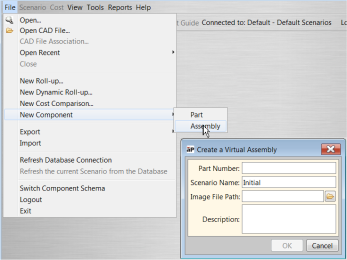
- Select File > New Component > Part or Assembly from the aPriori menu bar to display the Create a Virtual Part or Create a Virtual Assembly window.

-
Enter a part number in the Part Number field.
-
Use the default scenario name for the new part or assembly or enter a new scenario name.
Note: The Scenario name field cannot be blank. For more information about scenarios, see Working with scenarios.
-
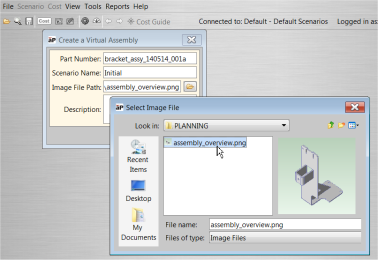
In Image File Path click the folder icon to browse to an image that you want associated with the component.
-
Supported image formats are BMP, WBMP, JPG, JPEG, PNG, and GIF.
-
-
(Optional) Enter a description in the Description field.
-
Click OK to display the Production Info tab of the Cost Object Info window.
-
Select the Costing Method:
- Manual to manually enter cost data for the part
-
aPriori if you have licensed the aPriori Professional User Guided Costing module and want to enter inputs to drive a user-guided cost model.
-
Select the Batch Size.
- Auto to have aPriori calculate the monthly production size from your Annual Volume value/12.
- Manual to provide a specific value.

-
(Optional) Check the Target Cost and /or the Target Finish Mass box and enter a value in their fields to associate target values with the component.
-
Click OK.